Tutorial
Ten short lessons in order, from first power-on to reset. Lessons 1–5 you do once, the rest when you need them.
You need: the calculator, a 2.4 GHz WiFi network or your phone’s hotspot, and an email address.
1The calculator
First of all it is a regular scientific calculator that works without internet. The AI module stays off meanwhile and doesn’t drain the battery.
How
- ON turns the calculator on, and another press turns it off. It also turns off by itself after 5 minutes without a key press.
- Type an expression and press =. Fractions, roots and powers look the way you write them on paper.
Good to know
- ▲ ▼ scroll through the last 8 calculations with their answers. The history survives switching off.
- After =, press ◀ or ▶ to edit the expression instead of typing it again.
- On an error the cursor lands right where the error is.
- RCL jumps between the calculator and AI mode.
2Connecting to WiFi
The calculator needs internet only for questions to the AI. You set up the network once and it is remembered.
How
- MODE → 4 SETTINGS → =.
- The WiFi row → = → Find networks... → =.
- Pick your network with the arrows and press =. The keyboard for the password opens.
- Type the password: the arrows move the highlight, = types the character.
- ▼ to [OK] → =. Once it is connected, the top line says connected.
Good to know
- Only 2.4 GHz networks work. If your router broadcasts Home and Home_5G, pick the first one.
- iPhone 12 and later: Settings → Personal Hotspot → Maximize Compatibility, otherwise the iPhone shares only 5 GHz. Keep that screen open while the calculator connects.
- Android: set the hotspot band to 2.4 GHz. If it still won’t connect, set the security to WPA2-Personal.
- On the keyboard SHIFT switches to lowercase, and passwords are case-sensitive. The bottom-left cell switches RU/EN, the one above it opens symbols.
- A hidden network is not in the list: choose Other network... and type its name.
- Networks that make you log in on a web page (cafés, hotels) won’t work. Use your phone’s hotspot there.
- To Forget a network, press = twice.
3Pairing with the site
Pairing links the calculator to your account on logarum.com, where you see your question history and the free month. You do it once.
How
- Sign in at logarum.com: type your email, tick the box and open the link from the email.
- On the calculator: MODE → 2 AI MODE → =. In a few seconds a five-character code appears in big letters.
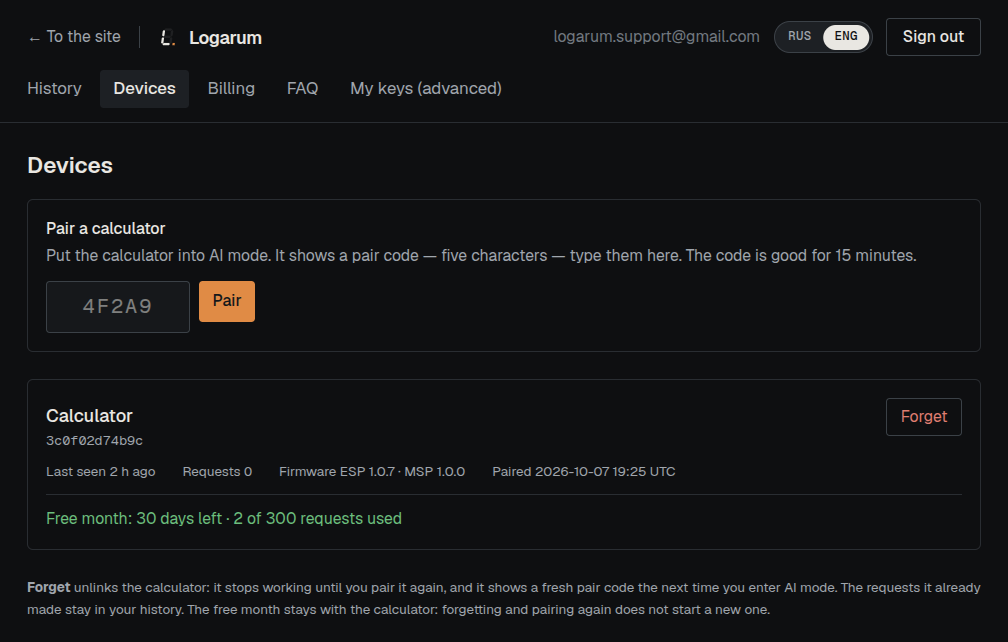
- On the site open Dashboard → Devices and type that code.
- A few seconds later the calculator carries on by itself. You don’t need to press anything on it.
Good to know
- The code appears only once the calculator is on WiFi: the server issues it.
- The code is good for 15 minutes. If it expired, leave AI mode and enter it again to get a new one.
- logarum.com/start opens the code field directly.
- ACCEPT TERMS ON SITE on the screen means: sign in on the site and tick the consent box.
4Choosing an AI model
Answers come from models by three companies: OpenAI (ChatGPT), Google (Gemini) and DeepSeek. You can switch the model at any time.
How
- MODE → 3 MODELS → =.
- Pick a provider — ChatGPT, Gemini or DeepSeek — and press =.
- ◀ ▶ scroll through the models. Each one shows its price in a word, what it is good at and whether it sees photos.
- = on [SELECT]. The Now: line at the top shows the new model.
Good to know
- The model that answers now is shown in the top right corner of AI mode.
- DS PRO can’t see photos, only text.
- The default model, GPT LUNA, reads text in photos well.
- During the free month a stronger model is replaced by the basic one from the same provider. The answer then starts with TRIAL: ANSWERED BY ….
- You can switch the model before every question, it costs nothing.
- What each model costs in requests — see Prices.
5Your first question: photo and text
The photo and the question are put together separately and go out in one send. You can send just a photo, just a question, or both.
How
- MODE → 2 AI MODE → =. Wait for ready to shoot.
- Aim the calculator at the problem and press M+. While the screen says hold still, keep it steady. After got it, can move you can lower it.
- To add a question, move to the Prompt row → =, type the text, ▼ to [OK] → =.
- Go down to the Send photo + prompt bar → =.
- The answer opens in about 20 seconds. ▲ ▼ scroll the pages, = goes back to the list.
- The first answer starts the free month — that is the next lesson.
Good to know
- The photo survives switching off: shoot, do some maths, come back and add the question.
- DEL erases what the cursor is on: the photo, the question or the answer. To ask without a photo, erase it on the Photo row.
- On the keyboard, holding DEL erases fast, and AC erases a word at a time.
- AC stops a request. If you go back to the calculator during a request, the answer still arrives and waits on the Answer row.
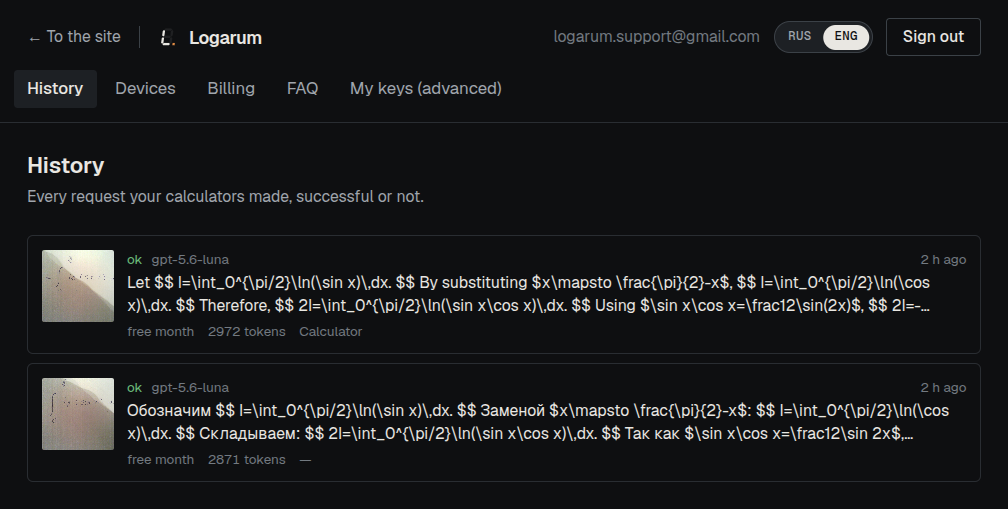
- Every question is saved under History on the site, with its photo and answer.
6Dashboard: free month, history, your own keys
The dashboard on the site shows everything the calculator did. To start, you need neither a card nor an AI provider account.
How
- Devices — your paired calculators, how much of the free month is left and which firmware they run.
- History — every question: the photo, the text and the answer.
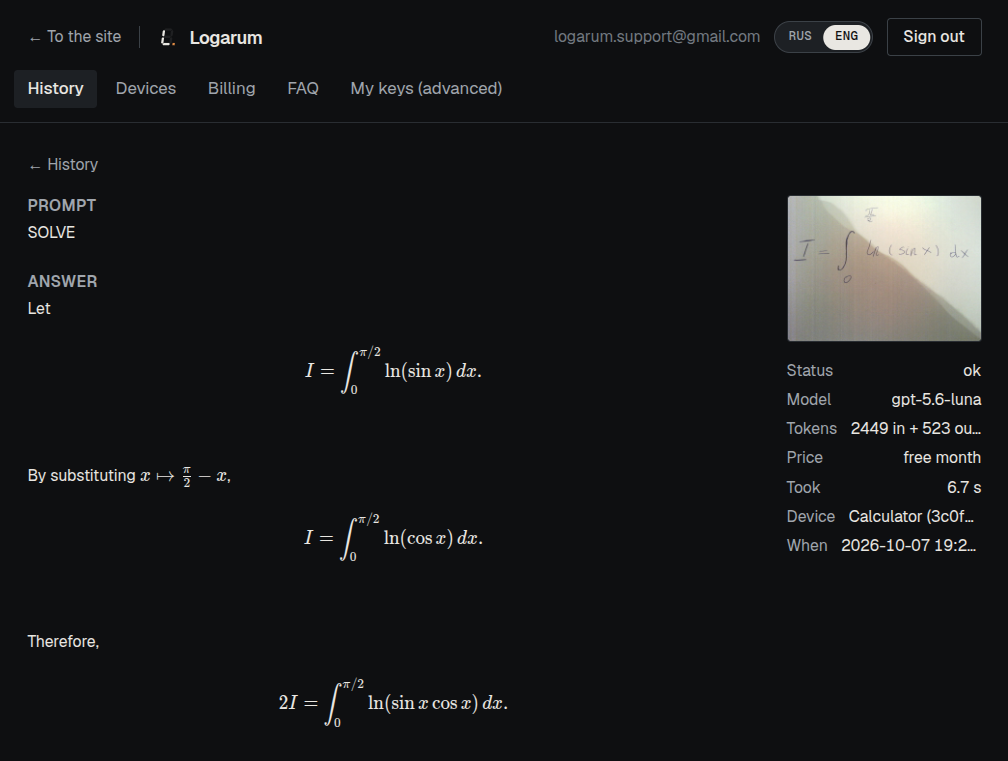
- Click a request to see its photo, question and answer in full.
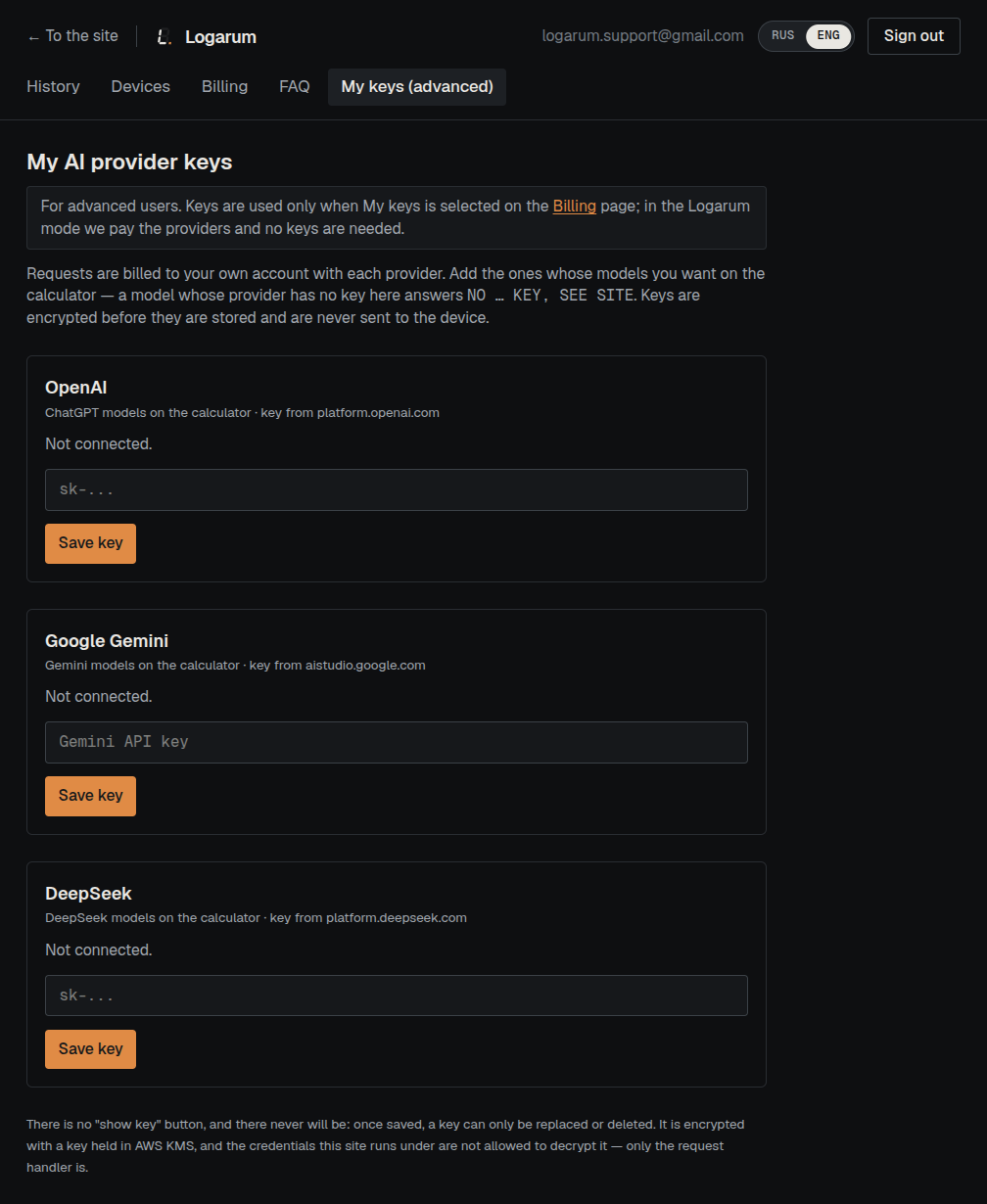
- My keys (advanced) — add your own OpenAI, Gemini or DeepSeek key here. To use it, choose Own keys on the Billing page.
Good to know
- The free month comes once per calculator: 30 days or 300 requests, whichever runs out first. It starts with the first answer.
- Unpairing the calculator and pairing it again does not start a new free month.
- Your key is stored encrypted on the server and never reaches the calculator. The site can’t show it to you again, only replace or delete it.
7Phone hotspot and “Keep WiFi”
If your internet comes from your phone, the calculator can keep the hotspot alive so you don’t have to turn it on before every question.
How
- MODE → 4 SETTINGS → the Keep WiFi row.

- ◀ ▶ change how long: off, 30 min, 2 h, 5 h. The default is 30 minutes after leaving AI mode.

Good to know
- An iPhone hides its hotspot after 90 seconds with nothing connected. That is what “Keep WiFi” is for.
- While WiFi is held, the calculator doesn’t switch off by itself. An hour of holding costs about 2% of the battery.
- ON switches everything off at once, WiFi included.
- On Android you can turn off the hotspot’s automatic shutdown in its settings.
8PIN code
A PIN locks the MODE menu: without it nobody gets from the calculator into AI mode or the settings.
How
- MODE → 4 SETTINGS → the PIN: not set row → =.

- Type four digits. The stars show how many you have typed.

- Type the same four digits again.
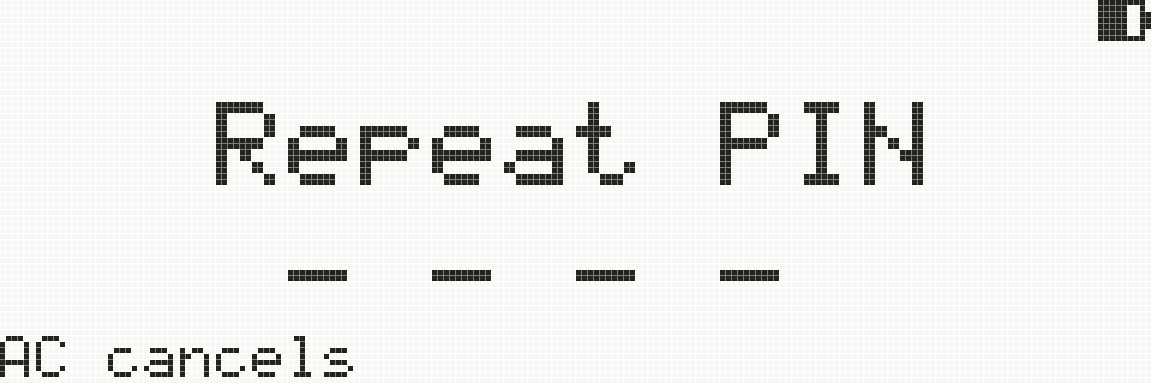
- Done: the row now says PIN: set. Change or remove the PIN on the same row.

- From now on MODE in the calculator asks for the PIN first: the screen shows just four dashes, no words.

Good to know
- The PIN locks only MODE from the calculator. Calculating works without it.
- Forgot the PIN? Email us, or reset the calculator (lesson 10).
9Updating the firmware
The calculator updates itself over WiFi. Nothing is installed until you press the button.
How
- Connect WiFi (lesson 2).
- MODE → 4 SETTINGS → Update firmware.... If the row says new 1.0.8 on the right, an update is out.

- =. The calculator shows the new version and what changed. ▼ to [INSTALL] → =. If it doesn’t know about the new version yet, [CHECK] comes first.
![The “Version 1.0.8 is available” screen with [CANCEL] and [INSTALL]](/tutorial/en/update.png)
- About a minute, keep the calculator on.

- At the end it says Done: version … installed. = leaves.

Good to know
- With a low battery the calculator asks you to plug in USB.
- If the new version fails to start, the calculator goes back to the previous one by itself.
- What changed in each version is on the “What’s new” page.
10Language, contrast and reset
The remaining settings are in the same 4 SETTINGS list.
How
- Язык / Language — the first row. = switches between Russian and English.

- Contrast — ◀ ▶ right on the row, the screen changes at once.

- Reset everything... → =. The cursor is on [CANCEL]: ▼ to [RESET] → =. It erases the network, password, model, question, answer and photo, and unpairs the calculator from the dashboard.
![The “Reset everything” screen with [CANCEL] and [RESET]](/tutorial/en/reset-ask.png)
Good to know
- The language row is labelled in both languages, so anyone can find it.
- Reset the calculator before you sell it or give it away.
- If it freezes, press ON to switch it off and on. The network, model, language and question are kept.
- If the calculator won’t let you anywhere, switch it off with ON and keep holding it for 8 more seconds: the reset screen opens.
Something not covered here? See the FAQ or email logarum.support@gmail.com.